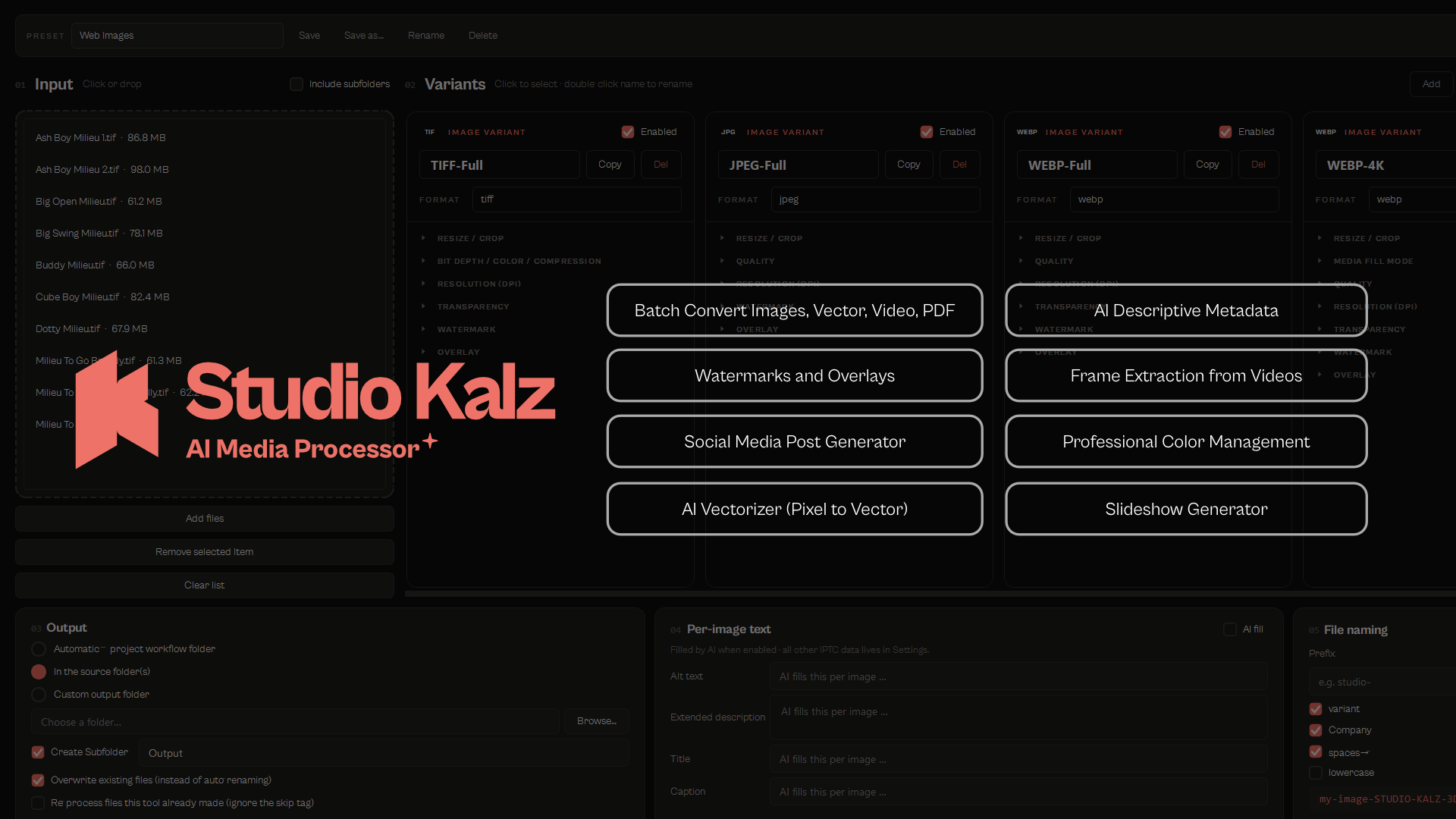
Overview
STUDIO KALZ - AI Media Processor is a Windows application for the studio export routine. You define your delivery variants once, drop in a master file, and get back a complete folder of correctly formatted, colour-managed, metadata-tagged files in a single click - without opening Photoshop, a video editor or a separate WebP/AVIF tool.
It is built around what a studio delivers day after day:
- Raster conversion - JPEG, PNG, TIFF, WebP, AVIF and PSD, with per-variant resize/crop, quality control and optional KB-size caps.
- Vector workflow - trace any raster to SVG, PDF or EPS, pass vector files through losslessly, and render or split/merge multi-page PDFs.
- Video conversion - WebM (VP9/VP8/AV1), MP4 (H.264/H.265) and MOV (ProRes/H.264) via the bundled ffmpeg, plus single-frame extraction.
- Slideshows - turn a folder of stills into an MP4/WebM/MOV with Ken-Burns zoom and cross-fades.
- Branded overlays - lay a full-frame PNG template plus live heading/body text over any image, video or slideshow.
- Watermarks - a reusable logo and text watermark on top of everything.
- AI metadata (optional) - with your own Anthropic API key, write title, alt text, description and keywords straight into every image.
Everything runs locally and offline. The only features that use the internet are the optional AI metadata and the optional Vectorizer.AI cloud tracer. This page documents version 3.6.1. The application is available on Gumroad: Download the AI Media Processor.
Installation and first start
System requirements
| Requirement | Detail |
|---|---|
| Operating system | Windows 10 or Windows 11, 64-bit (Intel / AMD) |
| Disk space | About 300 MB for the unzipped program folder |
| RAM | 8 GB recommended; workers auto-scale to free memory |
| CPU | Any modern multi-core processor; throughput scales with core count |
| Internet | Only for the optional AI metadata and Vectorizer.AI features |
| Not yet supported | macOS, Linux and Windows on ARM (a macOS build is planned) |
Two delivery formats
The portable ZIP unzips anywhere and runs by double-clicking the .exe. Python, ffmpeg and every library are bundled inside, so there is nothing to install and no admin rights are needed. If a signed setup installer is provided, it installs into Program Files, creates shortcuts, and stores user data under %APPDATA%.
Because the binary is not code-signed, Windows may show a SmartScreen warning on the very first launch. Click "More info" and then "Run anyway"; Windows remembers the decision for that machine. On first launch you accept the licence agreement and can run a short one-time setup (workflow folder names, optional Anthropic API key, branding logo). All of it can be changed later in Settings.
Where your data lives
Presets, settings, the overlay and watermark libraries, fonts, colour profiles and your branding logo are stored next to the program (portable build) or under %APPDATA%\STUDIO KALZ AI Media Processor (installed build). API keys are stored separately and are never bundled into a backup.
The main window
The window is organised top to bottom into a branding header (studio wordmark or your own logo, plus the version number), a preset bar (load, save, rename, duplicate and delete export presets), an input column (drop source files or whole folders), a variants strip (one card per output variant), an output card (where files land, wrapper subfolder, delete-after-export, reprocess), a per-image text card (copyright, author, contact and licence-URL written into metadata), and the run button and log with a live progress bar and optional finish sound. One master file fans out to every enabled variant in a single run; mixed image and video inputs are handled together.
Input formats
| Category | Accepted input |
|---|---|
| Images | JPG/JPEG, PNG, TIFF, WebP, HEIC/HEIF (iPhone photos), PSD/PSB. ICC profiles are honoured, alpha is preserved where the output supports it, and HEIC orientation is applied automatically. |
| Vector | SVG (rendered with resvg, text-accurate), PDF (via pypdfium2), EPS (via Ghostscript, if installed). |
| PDF (multi-page) | Every page can render to a separate image, or split into one single-page PDF per page; merge is also supported. |
| Video | MP4, MOV, MKV, WebM, AVI and M4V, decoded by the bundled ffmpeg. |
Illustrator .ai files are not supported.
Output formats
Each variant produces one output. The complete input-to-output reference is in the conversion matrix below.
Raster
| Format | Notes |
|---|---|
| JPEG | Quality slider, optional KB-size cap with automatic quality search, 4:4:4 chroma, embedded ICC + EXIF/IPTC/XMP metadata. |
| PNG | Lossless 8-bit with full alpha and metadata. |
| TIFF | 8- or 16-bit, LZW or uncompressed, sRGB / Adobe RGB / CMYK. |
| WebP | Quality + KB-cap, alpha, metadata (a format Adobe cannot export). |
| AVIF | Modern AV1 still image; quality + KB-cap like WebP, encoded natively. |
| PSD | Single-layer Photoshop file with embedded metadata and resolution. |
Vector
| Format | Notes |
|---|---|
| SVG | Passed through from an SVG source, or traced from a raster (vtracer or Vectorizer.AI). |
| From an SVG source, a direct vector conversion that preserves paths and text; from a raster, raster-embedded (default) or traced; multi-page merge or per-page split. | |
| EPS | From an SVG source, a direct vector conversion (never traced); from a raster, produced by the trace engine. |
Video
| Container | Codecs | Typical use |
|---|---|---|
| WebM | VP9 (default), VP8 or AV1; Opus audio | Web pages, royalty-free streaming |
| MP4 | H.264 (default) or H.265/HEVC; AAC audio | YouTube, universal playback |
| MOV | Apple ProRes (default) or H.264; AAC audio | Editing master, archive copies |
Video variants use a single 1-100 % quality slider mapped to codec-specific settings, plus a dedicated Lossless toggle for mathematically lossless output where the codec supports it.
Three special paths are worth noting. A PSD/PSB source written to PSD keeps its layers (no flatten). A vector source written to the same vector format is copied byte-for-byte with metadata injected. An image-kind variant applied to a video samples every Nth frame to stills.
Resize, crop, zoom and Media Fill Mode
Each variant has a sizing mode: Original (keep source pixels), Resize (fit by long edge, short edge, width, height or percentage), Crop (cover-crop to an exact pixel size) or Preset (a stored crop preset). A Zoom slider (100-400 %) sits below every mode and crops into the image following the anchor. Zoom never upscales: past the point the source can supply at the target size, the output shrinks instead of pixelating. Zoom applies to image and video export; slideshows keep their own Ken-Burns zoom.
When a crop changes the aspect ratio, the Media Fill Mode decides how the photo fills the frame:
| Mode | Result |
|---|---|
| Crop to fill | Cover the frame and crop the overflow. |
| Letterbox - solid | Fit the whole image with black bars. |
| Letterbox - blurred | Fit the whole image over a blurred fill (adjustable blur and darkening). |
A 9-point anchor sets which part of the photo a cover-crop keeps and where the image sits inside letterbox/blur bars. The default is Centre. Fill mode and anchor apply to images, video, slideshows and the overlay photo.
Overlays
An overlay lays a full-frame PNG template over your photo and renders a heading and body text into the export. The PNG defines the export size, so the same template produces a pixel-perfect post every time. Overlays apply identically to images, video and slideshows.
Settings holds any number of named overlays, typically one per post type. An interactive frame editor shows a live preview with three movable, resizable frames - image, heading and body - kept in sync with X/Y/W/H fields in pixels of the PNG canvas. The image frame carries offset, scale, margin, the 9-point anchor and the crop/letterbox/blur fill. Heading and body each carry font, size, colour, alignment, line spacing, letter spacing, opacity and an optional drop shadow. Text auto-wraps to its frame width, so no manual line breaks are needed. With Link heading & body on, the body stacks directly under the heading with an adjustable gap. Because the overlay PNG sets the export size, resize controls are hidden while an overlay is active; the photo's fit is still set in Media Fill Mode.
Watermarks
A watermark is a reusable logo and/or text mark drawn on top of the overlay on every output. The logo layer is a PNG with position, opacity and padding. The text layer is free text with its own font, size, colour, alignment, letter spacing, opacity and an optional drop shadow. Watermarks are configured in Settings and selected per variant. Vector outputs skip the watermark with a note.
Slideshows
A slideshow variant turns a folder of stills into one MP4, WebM or MOV. Motion is a configurable Ken-Burns zoom with a cross-fade or hard-cut transition. Timing covers slide length (decimals allowed) and output frame rate (24/25/30/60, with optional motion-compensated interpolation). The same Crop / Letterbox / Blur fill and anchor apply, and overlays and watermarks are composited per frame.
AI metadata
The AI feature is optional and off until you add your own Anthropic API key. When enabled, every image is analysed and a complete set of SEO and accessibility metadata is written straight into the file.
| Field | Content |
|---|---|
| Title | Concise and descriptive. |
| Alt text | One factual sentence (about 125 characters) for screen readers and SEO. |
| Description | One or two sentences with more detail. |
| Keywords | 12-20 tags covering subject, material, style, industry and colour. |
Every field is embedded into the EXIF, IPTC-IIM and XMP packets that Google Images, Lightroom, Bridge and Adobe Stock read, across JPEG, WebP, AVIF, TIFF, PNG and PSD. By default the AI writes in English; type any language into Settings (for example German, Francais, Nederlands) to receive the metadata in that language. Results are cached per language, so re-runs cost nothing. The feature uses Claude Haiku, typically a fraction of a cent per image, billed by Anthropic directly through your own key.
Vector tracing
vtracer converts a raster to clean vector paths locally, in colour or binary mode, with adjustable detail (colour precision, corner/length/splice thresholds, path precision). No internet, no per-image cost. Vectorizer.AI is a higher-fidelity cloud tracer for difficult artwork; it needs Vectorizer.AI credentials and an internet connection, and supports test, preview and production modes. For PDF, raster sources can be embedded at a chosen DPI, and multi-page PDFs can be split to one file per page or combined into one document.
Colour management
Outputs support sRGB, Adobe RGB and CMYK, with the matching ICC profile embedded. TIFF can be 8- or 16-bit for high-fidelity print delivery. Source ICC profiles are read and converted to the variant's target space automatically, and user ICC profiles can be added.
Presets
A preset stores a whole delivery format: every variant plus naming and output settings, including overlay and watermark choices. Switching a preset switches the overlay, watermark and text it carries. Starting points are provided and fully editable:
Preview Images, Preview Video, Web Images, Web Video Variants, Image Delivery, Video Delivery, PDF Combiner, PDF Extract, Video Frames, Vectorizer AI, Vector trace (local), Video Blur Crop and Slideshow. You can save over, rename or delete them, create unlimited presets of your own, and pin one as the default for Auto Mode when files are dropped onto the program icon.
Filenames
Filenames are built from a global prefix, suffix and separator, with optional appended company name, author, variant name or pixel size. A custom basename can fully rename outputs. Umlauts and accents transliterate automatically (ae, oe, ue, ss), a 255-character cap keeps names Windows-safe, and a live preview shows the result before you export.
Performance
The application processes across all available CPU cores, with worker count scaling automatically to CPU and free RAM. Batches typically run 4-10x faster than a serial export. It is also re-run safe: the tool tags its own outputs and never converts the same file twice unless you ask it to.
Backup and restore
One click writes everything needed to reproduce your setup on another machine into a single file: all presets and global settings, crop presets and the colour-swatch palette, the watermark library (including logo PNGs and fonts), the overlay library (including template PNGs and fonts), the font library, any user ICC profiles, your branding logo and the optional finish sound. Secrets are never bundled - the Anthropic API key and Vectorizer.AI credentials are scrubbed out. Importing a backup on a clean machine restores the libraries and rewrites asset paths automatically, and a built-in self-test verifies the full round-trip section by section.
Conversion matrix
Supported outputs for each input type. Video outputs from a still image mean a slideshow; image outputs from a video mean sampled frames.
| Input | Supported outputs |
|---|---|
| JPG / PNG / TIFF / WebP / HEIC | JPEG, PNG, TIFF, WebP, AVIF, PSD, SVG, PDF, EPS; slideshow (with other stills) |
| PSD / PSB | PSD (layers kept), or composite to JPEG/PNG/TIFF/WebP/AVIF; SVG/PDF/EPS via trace |
| SVG | SVG passthrough; render to JPEG/PNG/TIFF/WebP/AVIF/PSD; direct vector to PDF/EPS (paths preserved, never traced) |
| PDF passthrough / split / combine; render pages to JPEG/PNG/TIFF/WebP/AVIF; trace to SVG/EPS | |
| EPS | EPS passthrough; render to raster; trace to SVG/PDF |
| MP4 / MOV / WebM / MKV / AVI | WebM, MP4, MOV (transcode); sampled frames to JPEG/PNG/TIFF/WebP/AVIF/PSD |
| Folder of stills | Slideshow to MP4 / WebM / MOV |
Troubleshooting and known limits
| Situation | What to do |
|---|---|
| A file was skipped | The tool tags its own outputs and skips them on a re-run. Enable "reprocess already-created files" in the Output card to force it. |
| Overlay shows no output | The overlay needs a valid PNG; an entry whose PNG is missing is skipped with a log note. |
| EPS export does nothing | EPS input/output uses Ghostscript; install it if EPS is required. |
| Vector output has no watermark/overlay | Raster overlays would corrupt traced vector output, so they are skipped with a note. |
| Letter spacing missing on video | ffmpeg text does not support letter spacing; it is applied to image exports only. |
| SmartScreen or AV warning | Expected for an unsigned indie build. Click "Run anyway" or whitelist the file. |
Not supported: macOS, Linux and Windows on ARM, and Illustrator .ai input.
Licence and privacy
The software is licensed under the bundled End User Licence Agreement (EULA.txt); read it for the authoritative terms. All processing happens on your machine. Files never leave your computer except for the two optional online features you switch on explicitly: AI metadata (image data sent to Anthropic under your own API key) and Vectorizer.AI (image data sent to Vectorizer.AI under your own credentials). No telemetry or usage data is collected.
Contact and updates
Studio Kalz - hi@studio-kalz.de - www.studio-kalz.de. Updates are delivered as a new download: back up your settings first, then unzip or install the new version and import your backup if needed. Get the current build on Gumroad: Download the AI Media Processor.